Jam Mode
Jam mode is a free-play canvas. There’s no destination or path — just you, your keyboard, and a live chord graph that builds as you play.
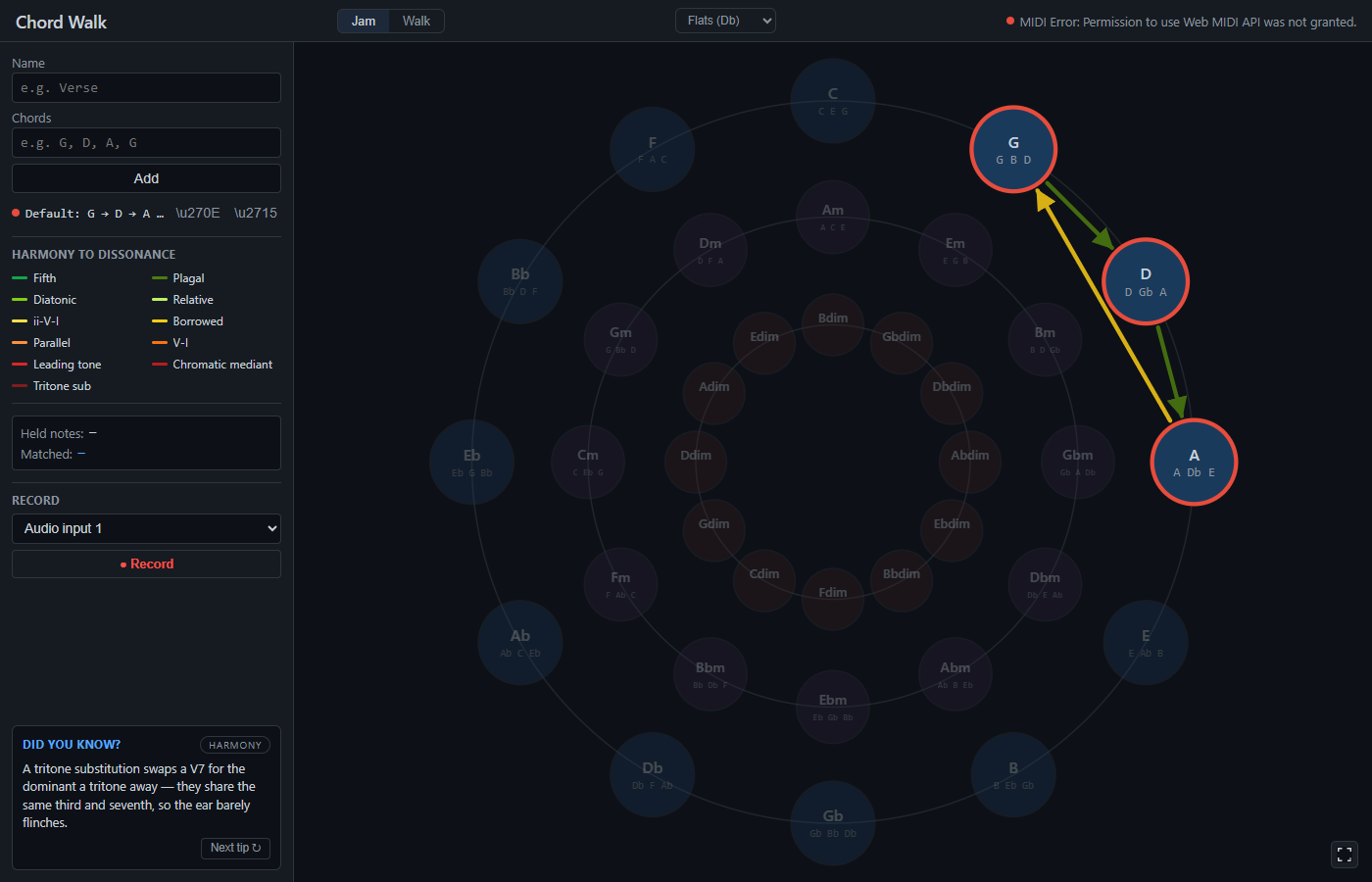
Chord detection
Hold three or more notes on your MIDI keyboard and the app identifies what you’re playing. The matched chord glows blue on the Circle of Fifths. If it matches the next expected step in a Walk mode path, it glows green instead.
Detection works at two levels:
Triads — the 36 nodes in the theory graph (major, minor, diminished). Matched by pitch class subset: a chord matches if all of its pitch classes are present in what you’re holding.
Extended chords — the app also identifies dominant 7ths, major 7ths, minor 7ths, half-diminished, diminished 7ths, augmented, sus2, sus4, add9, and minor add9. These are shown by name in the Matched panel (C7, Cm7, Dadd9, etc.) with a quality label underneath. The underlying triad still lights up on the circle.
When an extended chord with a strong resolution tendency is detected, the circle draws dashed amber edges pointing to the likely next chord — a C7 shows an arrow to F, a Cm7 shows an arrow toward F (the V in a ii–V move). These are hints, not prescriptions.
The progression graph
Each detected chord appears as a node in the force-directed graph in Jam mode. Edges connect chords you’ve moved between, coloured by edge type. The graph rearranges itself by spring physics — nodes push apart, edges pull them together.
You can drag nodes to reposition them. The layout isn’t the Circle of Fifths; it reflects your actual progression history, which is often more interesting.
Saving and loading
Jam mode progressions can be saved to .cwalk.json files via File → Save. The file records chord names, node positions, and the edge set. Load it back later and the graph restores exactly.
Walk mode state is session-only and is not persisted.
Recording audio
The Audio recorder panel in the sidebar captures both audio and MIDI simultaneously. Select your line-in device from the dropdown and hit ● Record. When you stop, it asks you to pick a folder and saves three files inside a timestamped subdirectory:
recording.wav— your audio, automatically peak-normalised and limitedrecording.mid— every note-on/note-off event with accurate timingrecording.cwalk.json— a snapshot of the circle at the moment of saving (which progressions were loaded, where nodes were positioned)
Once saved, hit ▶ Play in Replay to switch to Replay mode, auto-load all three files, and start playback immediately. The circle will show the state from when you recorded, not your current session — so the context is always right.
Audio is processed before saving: DC offset is removed, a 25 Hz high-pass filter clears rumble, gain is applied to bring the peak to −3 dBFS (capped at +14 dB to protect quiet recordings from over-amplification), and a hard limiter catches any remaining peaks. The metrics panel shows raw peak, applied gain, and polished peak after saving.
MIDI activity
The MIDI status indicator in the top-right shows your connected device and lights up on incoming MIDI events. If it’s not connected, check your USB cable and relaunch the app. The app picks up MIDI devices present at startup.